Free STL repair, No sign-up required
Holes, flipped faces, duplicate vertices and stray fragments: the things that make a slicer refuse a file. Repaired in your browser, with a report of what was wrong.
- Free, unlimited
- No account required
- In your browser
Drop a 3D model
- STL
- OBJ
- PLY
- GLB
- glTF
Nothing is uploaded. The file stays on your device.
What gets checked
- Watertight
- Every edge is shared by exactly two triangles. A slicer needs this to tell inside from outside.
- Manifold
- No edge is shared by three or more faces. Those confuse slicers even when the model looks closed.
- Face direction
- Neighbouring triangles wind the same way, and the surface points outward rather than inward.
- Loose pieces
- Fragments not connected to the model, usually left over from a boolean or a scan.
Fix an STL file for printing
- Drop the STL, OBJ, PLY or GLB on the tool above, check the settings, and press Repair. It runs in your browser.
- Read the report: what was wrong before, what was fixed, and whether the result is watertight and manifold.
- If the repair alone cannot make it printable, as with overlapping parts, Make solid (on When needed by default) seals it into one solid piece, which always slices. The colour comes along.
- Press Check size and cost to pick your printer and the print size, or download the repaired STL and load it into your slicer.
Repair, on a broken scan
A scanned marble bust with three holes torn through its surface, and what the tool made of it: every hole closed with new triangles that follow the shape around them.
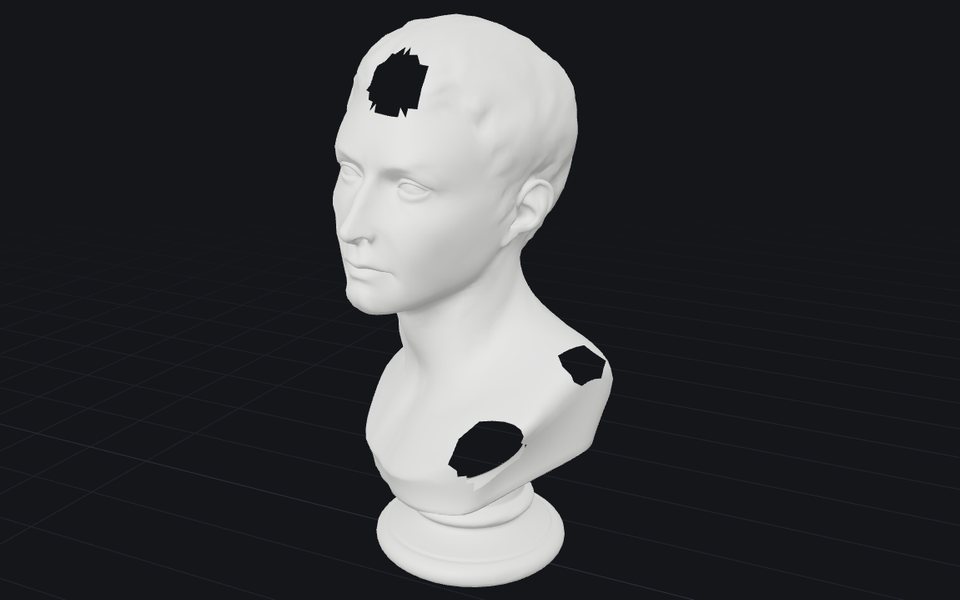
A scan with holesnot printable: the surface is open 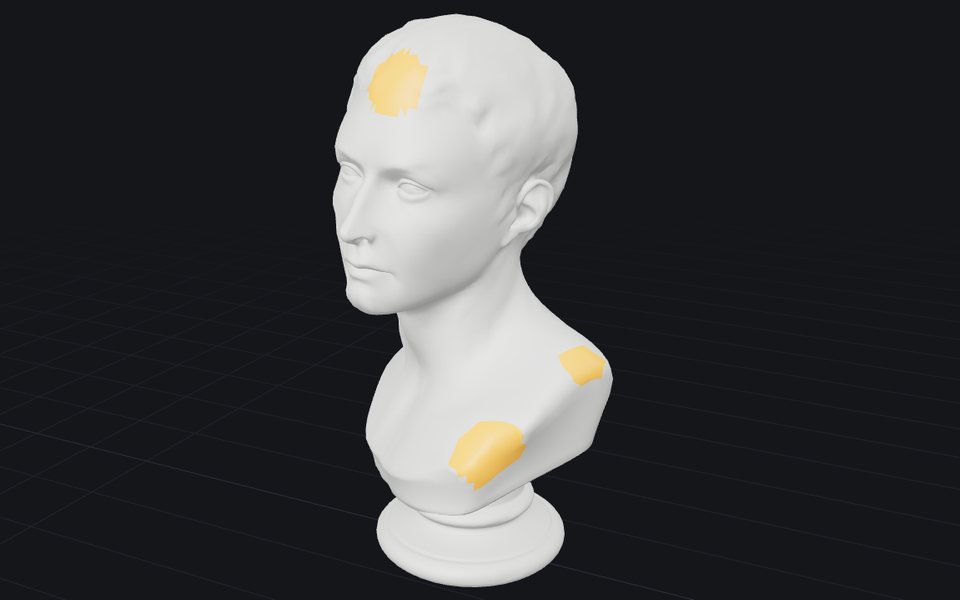
Repairedevery hole closed, in amber
Questions
- What can I change?
- Pick them before you press Repair; they are remembered for the next file. Close holes: up to a quarter or half of the model's size, any size, or off. Loose pieces: remove small ones (under 2% of the biggest piece's size), keep all, or keep only the main piece, which cleans floating noise off a scan. Make solid: when needed, always, or never. Solid detail: Standard or Fine in your browser, or Best, which uses our server when the parts cannot be joined exactly. The Changes view shows the patches in amber and the removed pieces in red.
- Is my file uploaded anywhere?
- Not unless you choose Best solid detail. The repair and Standard or Fine Make solid run in your browser, in a background worker, which is also why there is no queue and no waiting. With Best, and only when the parts cannot be joined exactly in your browser, the model is sent to our server for the solid step, and not kept.
- What does it actually fix?
- Duplicate vertices (which every STL has, because the format stores each triangle separately), zero-area triangles, faces wound the wrong way, inside-out normals, loose fragments floating near the model, and holes in the surface.
- What can it not fix?
- Holes up to half the model's size are closed with a smooth patch that carries on the surrounding surface, built from triangles the size of the ones around it, so a missing cap comes back rounded rather than as a flat lid. Anything bigger is left open, because a big opening is often meant to be there; set Close holes to Any to patch it anyway. Overlapping parts and edges shared by three or more faces are not patched; for those, Make solid seals it into one solid: it joins the parts exactly where it can, with no detail lost, and otherwise rebuilds them from a grid, which softens the finest edges (Fine and Best keep more). Walls too thin to print need remodelling; the print cost calculator reports the thinnest wall at the size you mean to print.
- Does the repair keep textures and colours?
- Yes, for GLB and glTF files. Materials, UVs, normals and textures come through the repair, and the GLB download carries them. A patch over a hole takes its texture from the edge of the hole when that edge lies in one piece of the UV layout; where a UV seam or a material edge crosses the hole, the patch takes one colour from around it. STL downloads are shape only. Make solid rebuilds the surface from scratch, so the textures cannot come along; it gives every new vertex the colour of the model where it sits instead, the form colour 3D printers take, in the GLB, OBJ and PLY downloads.
- What units is the repaired STL in?
- Millimetres, the unit slicers read. GLB, glTF and OBJ files are usually saved in metres, so when one of those is under 10 units across, the STL and OBJ downloads are scaled up 1000 times and the size is shown in millimetres, width × depth × height. A GLB download stays in metres, as glTF expects. An STL or PLY is kept in its own units, and a link under the size switches either way if the guess is wrong.
- Which tools used to do this?
- Meshmixer, which Autodesk discontinued in 2021, and Netfabb Basic, which no longer exists as a free download. Most guides still recommend both. This runs in a browser tab instead.
- Why does my slicer reject a model that looks fine?
- Slicers need a closed surface to tell inside from outside. A model can look perfect on screen while having a hole you cannot see, an edge shared by three faces, or a face pointing inward.
- Do I need an account or to sign up?
- No. No sign-up, login or email is required, and there is no limit: the tool runs in your browser, so there is nothing to meter. Use it as often as you like, on as many files as you like.
Next
- Print costWork out what a print costs and what to charge: filament, electricity, printer wear and your time, from slicer figures, a model or G-code.STL · OBJ · PLY · GLB · glTF
- ReduceFewer triangles, same look: make a heavy model lighter, textures kept.STL · OBJ · PLY · GLB · glTF
- ConvertConvert between STL, OBJ, PLY and GLB, with the units fixed so the size comes out right in your slicer.STL · OBJ · PLY · GLB · glTF
- ViewerOpen any 3D file, turn it around, and see its size, volume and polygon count.STL · OBJ · PLY · GLB · glTF